Microsoft Sentinel 101

Learning Microsoft Sentinel, one KQL error at a time

Use MS Graph and Sentinel to create dynamic Watchlists — 14th Jul 2021

Use MS Graph and Sentinel to create dynamic Watchlists

This post is a follow up to my post about enriching Sentinel via MS Graph here and in response to the community post here – how do we create dynamic Watchlists of high value groups and their members. There are a couple of ways to do this, you can either use the Azure Sentinel Logic App or the Watchlist API. For this example we will use the Logic App. Let’s start with some test users and groups, for this example our test user 1 and 2 are in privileged group 1 and test user 2 are in privileged group 2.
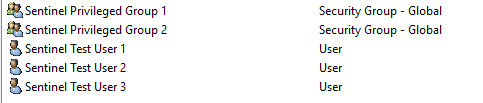
First let’s start by retrieving the group ids from the MS Graph, we have to do this because Azure AD group names are not unique, but the object ids are. You will need an Azure AD app registration with sufficient privilege to read the directory, directory.read.all is more than enough but depending on what other tasks your app is doing, may be too much. As always, least privilege! Grab the client id, the tenant id and secret to protect your app. How you do your secrets management is up to you, I use an Azure Key Vault because Logic Apps has a native connector to it which uses Azure AD managed identity to authenticate itself.

First create our playbook/Logic App and set the trigger to recurrence, since this job we will probably want to run every few hours or daily or whatever suits you. If you are using an Azure Key Vault, give the Logic App a managed identity under the identity tab.
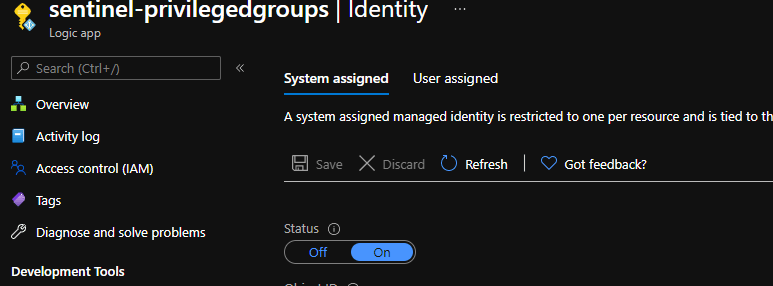
Then give the managed identity for your Logic App the ability to list & read secrets on your Key Vault by adding an access policy

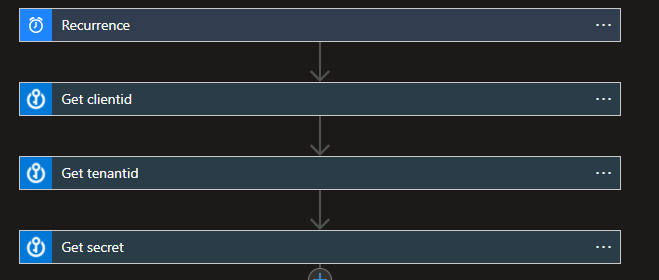
First we need to call the MS Graph to get the group ids of our privileged groups, we can’t use the Azure AD Logic App connector yet because that requires the object ids, and we want to do something more dynamic that will pick up new groups for us automatically. Let’s use the Key Vault connector to get our client id, tenant id and secret, and we connect using the managed identity.
Next we POST to the MS Graph to get an access token
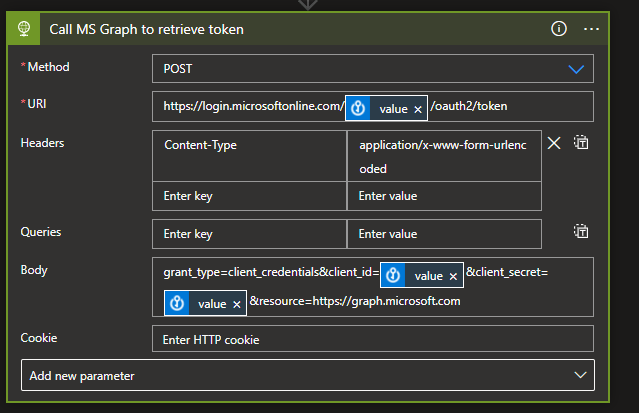
Add the secrets from your Key Vault, your tenantid goes into the URI, then clientid and secret into the body. We want to parse the JSON response to get our token for re-use. The schema for the response is

{
    "properties": {
        "access_token": {
            "type": "string"
        },
        "expires_in": {
            "type": "string"
        },
        "expires_on": {
            "type": "string"
        },
        "ext_expires_in": {
            "type": "string"
        },
        "not_before": {
            "type": "string"
        },
        "resource": {
            "type": "string"
        },
        "token_type": {
            "type": "string"
        }
    },
    "type": "object"
}

Now we use that token to call the MS Graph to get our object ids. The Logic App HTTP action is picky about URI syntax so sometimes you just have to add your URL to a variable and input it into the HTTP action, our query will search for any groups starting with ‘Sentinel Priv’ but you could search on whatever makes sense for you.
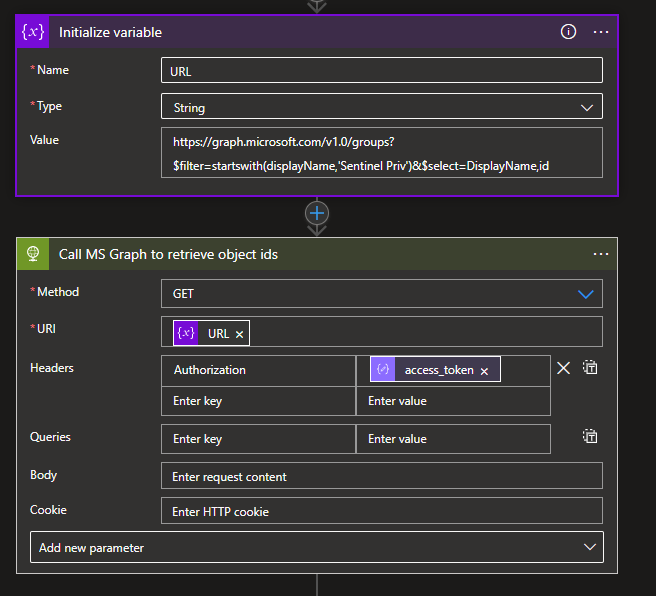
When building these Logic Apps, testing a run and checking the outputs is often valuable to make sure everything is working, if we trigger our app now we can see the output we are expecting

{
  "@odata.context": "https://graph.microsoft.com/v1.0/$metadata#groups(displayName,id)",
  "value": [
    {
      "displayName": "Sentinel Privileged Group 1",
      "id": "54bb0603-7d02-40a1-874d-2dc26010c511"
    },
    {
      "displayName": "Sentinel Privileged Group 2",
      "id": "e5efe4a4-51e0-4ed7-96b5-9d77ffb7ab74"
    }
  ]
}

We will need to leverage the ids from this response, so parse the JSON using the following schema

{
    "properties": {
        "@@odata.context": {
            "type": "string"
        },
        "value": {
            "items": {
                "properties": {
                    "displayName": {
                        "type": "string"
                    },
                    "id": {
                        "type": "string"
                    }
                },
                "required": [
                    "displayName",
                    "id"
                ],
                "type": "object"
            },
            "type": "array"
        }
    },
    "type": "object"
}

Next we need to manually go create our Watchlist in Sentinel that we want to update. For this example we have created the PrivilegedUsersGroups watchlist using a little sample data

Finally we iterate through our groups ids we retrieved from the MS Graph, create a JSON payload and use the Add a new watchlist item Logic App, you will need to add your Sentinel workspace details in here of course.
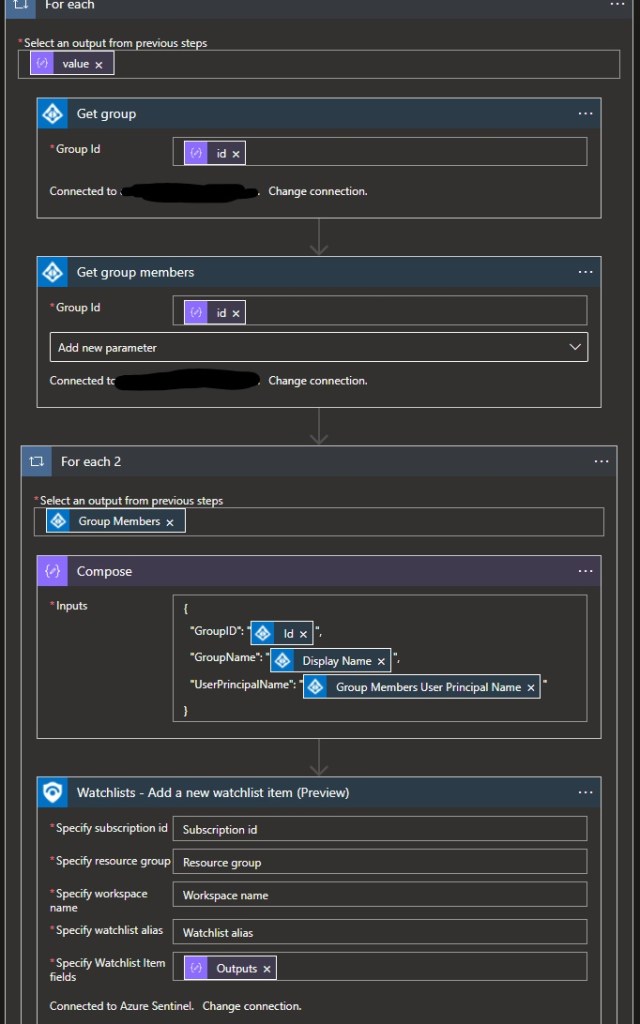
When we run our Logic App, it should now insert the members to our watchlist, including their UPN, the group name and group id.
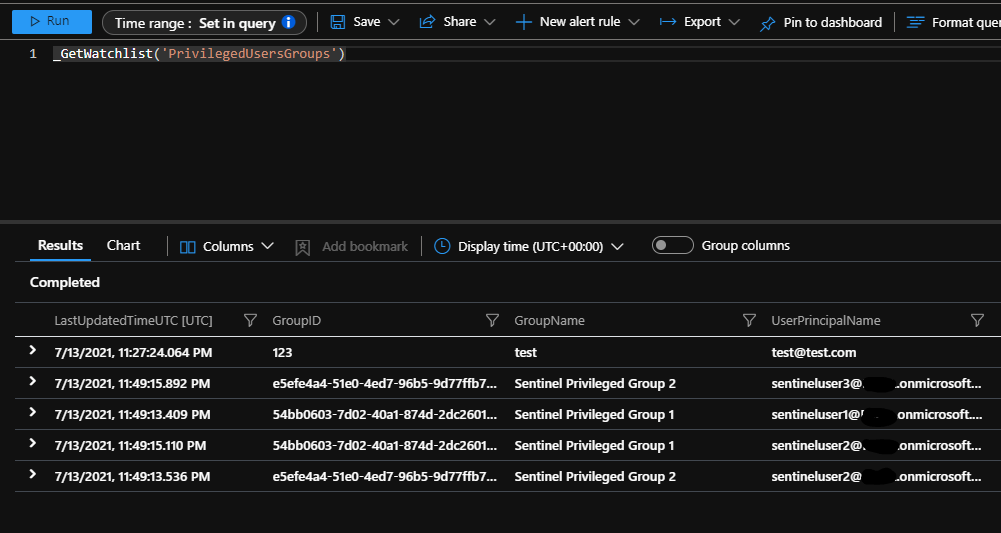
We can clean up the test data if we want, but now we can query on events related to those via our watchlist

let PrivilegedUsersGroups = (_GetWatchlist('PrivilegedUsersGroups') | project GroupName);
SecurityEvent
| where EventID in (4728, 4729, 4732, 4756, 4757)
| where TargetUserName in (PrivilegedUsersGroups)
| project Activity, TargetUserName
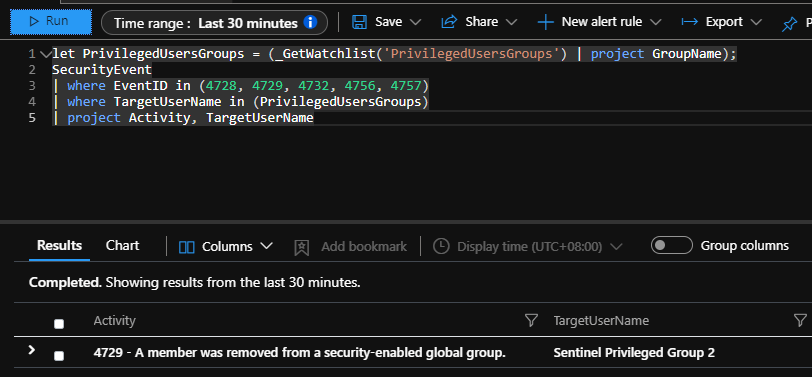
The one downside to using Watchlists in this way is that the Logic App cannot currently remove items, so when you run it each time it will add the same members again. It isn’t the end of the world though, you can just query the watchlist on its latest updated time, if your Logic App runs every four hours, then just query the last four hours of items.

_GetWatchlist('PrivilegedUsersGroups') | where LastUpdatedTimeUTC > ago (4h)

Join, lookup and union your way to unified identity in Sentinel — 8th Jul 2021

Join, lookup and union your way to unified identity in Sentinel

One of the ongoing challenges I have had when trying to detect credential compromise or other identity issues is that identities across products and environments are often not uniform. For companies who are born in the cloud, have no legacy on premise footprint maybe this is less of an issue. But those of us who have a large on premise environment still, possibly many on premise forests and domains, it becomes a headache. How do we tie together our legacy applications that love using SamAccountName as a logon identifier, or the cloud application that syncs a legacy attribute for its username, with our modern email address logon? You may even been dealing with multiple iterations of naming standards for some attributes.

Let’s take SamAccountName as an example, that is the ‘bobsmith’ part of bobsmith@yourdomain.com. By default this is synced to Azure AD as the onPremiseSamAccountName attribute, however this attribute is not exposed in the Azure AD PowerShell module and it isn’t revealed in Azure AD Sign-in logs. It is available via MS Graph, but we can’t access MS Graph when hunting in Sentinel directly. So how do we get that data into Sentinel, then make sense of it?

Enter this awesome post about enriching Sentinel with Azure AD attributes. I won’t rehash the post here, but in summary you poll Azure AD with PowerShell and send the data to a custom table to look up. Our problem is, some of the data we want isn’t available in the Azure AD PowerShell module, so we could either get the data from MS Graph and send it via the ingestion API, or in my case, we actually use the same logic that post outlines, but we run it on premise because we know the Active Directory module will surface everything we need. If we hunt through the PowerShell that makes up the solution here, instead of connecting to Azure AD like they do –

Connect-AzureAD -AadAccessToken $aadToken -AccountId $context.Account.Id -TenantId $context.tenant.id
$Users = Get-AzureADUser -All $True

We are instead going to connect to on-premise AD and choose what attributes we want to flow to Sentinel

Get-ADUser -filter {Enabled -eq $TRUE} -SearchBase 'OU=CorporateUsers,DC=YourDomain,DC=COM' -SearchScope 2 -Properties * | select UserPrincipalName, SamAccountName, EmployeeID, Country, Office, EmailAddress, WhenCreated, ProxyAddresses

Maybe we want to filter out disabled users, only search for a particular OU (and those under it) and bring back some specific fields unique to your environment. The key one in terms of identity is having SamAccountName and UserPrincipalName in the same table, using AD as our source, but maybe your application uses EmployeeID in its logs, so bring that up too. Let’s check out our UserDetails_CL table that we sent our data to-

We can see that our test users have different formats for their SamAccountName fields, maybe they lived through a few naming standards and they have different EmployeeID lengths. Now that we have the data we can use KQL to find what we need though. Let’s say we have an alert triggered when someone fails to logon more than 3 times in 5 minutes, looks like our test account has flagged that alert

Unfortunately it’s impossible to really tell who this is, if it’s threatening or where to go from here, there is a good chance this is just noise. So let’s expand our query to bring in our UserDetails_CL table full of our info from on premise AD and see who this is. We use the KQL let operator to assign results to a variable for re-use

let alert=
SecurityEvent
| where TimeGenerated > ago (5m)
| where EventID == "4771"
| summarize count()by TargetAccount
| where count_ > 3
| extend SamAccountName = TargetAccount
| project SamAccountName;
let userdetails=
UserDetails_CL
| where TimeGenerated > ago(24h)
| extend SamAccountName = SamAccountName_s
| extend EmployeeID = EmployeeID_s
| extend UserPrincipalName = UserPrincipalName_s
| project SamAccountName, EmployeeID, UserPrincipalName;
alert
| lookup kind=leftouter userdetails on SamAccountName

So first we run our alert query, then next our UserDetails_CL custom table. If you are going to keep this table up to date, and run your PowerShell nightly, then query that table for the last 24 hours of records so you get the most current data. Then finally we combine our two queries together; there are plenty of ways in KQL to aggregate data across tables – union, join, lookup. I like using lookup in this case because we are going to join on top of this query next.

Now we have a bit more information about this user, in particular their UserPrincipalName which is used in many other places, like Azure AD. We can then join our output to another query, this time looking for Azure AD logs by ‘replaying’ that UserPrincipalName forward.

let alert=
SecurityEvent
| where TimeGenerated > ago (5m)
| where EventID == "4771"
| summarize count()by TargetAccount
| where count_ > 3
| extend SamAccountName = TargetAccount
| project SamAccountName;
let userdetails=
UserDetails_CL
| where TimeGenerated > ago(24h)
| extend SamAccountName = SamAccountName_s
| extend EmployeeID = EmployeeID_s
| extend UserPrincipalName = UserPrincipalName_s
| project SamAccountName, EmployeeID, UserPrincipalName;
alert
| lookup kind=leftouter userdetails on SamAccountName
| join kind=inner 
(SigninLogs
| project TimeGenerated, UserPrincipalName, ResultType, AppDisplayName, IPAddress, Location, UserAgent) on UserPrincipalName

So we have looked up the SecurityEvent data from on-premise, flagged an account that failed to logon more than 3 times in 5 minutes, looked up their current AD details using our custom table we ingested, then joined that data to the Azure AD logs using their UserPrincipalName.

We can see the same user has connected to Exchange Online PowerShell and we get the collated identity information for the event.

You can use the same logic to bind any tables together, use third party MFA that comes in via SysLog or CEF?

let MFA = Syslog_CL
| extend MFAOutcome  = extract("outcome=(.*?) duser", 1, SyslogMessage_s)
| extend SamAccountName = extract("duser=(.*?) cs2", 1, SyslogMessage_s)
| extend MFAMethod = extract("cs2=(.*?) cs3", 1, SyslogMessage_s)
| extend MFAApplication = extract("cs3=(.*?) ca", 1, SyslogMessage_s)
| extend MFAIPaddr = extract("src=(([0-9]{1,3})\\.([0-9]{1,3})\\.([0-9]{1,3})\\.(([0-9]{1,3})))",1,SyslogMessage_s) 
| extend MFATime = TimeGenerated
| where MFAOutcome == "FAILURE"
| project MFATime, SamAccountName, MFAOutcome, MFAMethod, MFAApplication, MFAIPaddr;
let UserInfo = 
UserDetails_CL
| extend UserPrincipalName = UserPrincipalName_s
| extend SamAccountName = SamAccountName_s;
MFA
| lookup kind=leftouter UserInfo on SamAccountName
| project MFATime, MFAOutcome, MFAMethod, MFAIPaddr, SamAccountName_s, UserPrincipalName
| join kind=inner 
(SigninLogs
| where ResultType == "50158"
| project TimeGenerated, UserPrincipalName, ResultType, AppDisplayName, IPAddress, Location, UserAgent) on UserPrincipalName
| where MFATime between ((TimeGenerated-timespan(10min)).. (TimeGenerated+timespan(10min))) and IPAddress != MFAIPaddr

In this example the third party MFA uses SamAccountName as an identifier and the logs come into a Syslog table. We parse out the relevant details – MFA outcome (pass/fail), SamAccountName, MFA method (push, phone call, text etc), IP address and time, then find only MFA failures. We lookup our SamAccountNames in our UserDetails_CL table to get the UserPrincipalNames. Finally we query Azure AD for any logon events that have triggered a MFA request (ResultType = 50158). Then we add additional logic where we are only interested in events MFA and logon events within 20 minutes of each and where the IP address that logged onto Azure AD is different to the MFA IP address, which could suggest an account has been compromised but the owner of the account denied the MFA prompt from a different location.

Using Sentinel to automatically respond to identity alerts — 6th Jul 2021

Using Sentinel to automatically respond to identity alerts

Revoking a users sessions in Azure AD is a fantastic way to automatically respond to identity alerts like impossible travel or unfamiliar sign in properties, it becomes an even stronger response the greater your MFA coverage is, and the more apps you use Azure AD for authentication. However automating that response for legitimate actions, like where a user is using a VPN or has a new device, can lead you down a cycle where their sessions are revoked, they sign back in, trigger an alert again, have their sessions revoked and so on.

We can use a Logic App and a custom table to put some intelligence behind this and effectively whitelist a user for a given period. You could possibly achieve the same result using a Sentinel watchlist, but it is currently difficult to remove users from watchlists, though I suspect that functionality will come soon. For this example we have called the table RevokedUsers_CL

First, lets choose a Sentinel analytics rule to trigger this on. For this example we will use impossible travel, you can write your queries and do your entity mapping to suit your environment, but a straight forward example is below

SecurityAlert
| where AlertName == 'Impossible travel activity'
| where Status contains "New"
| parse Entities with * 'AadUserId": "' aadid_ '",' *
| extend ep_ = parse_json(ExtendedProperties)
| project aadid_, CompromisedEntity

Then we map our Account to AADUserID and Name to aadid_ and CompromisedEntity respectively

Now we can build our Logic App to automatically revoke the sessions for users that are flagged for impossible travel. We create a new app and set the trigger as ‘When Azure Sentinel incident creation rule was triggered’ then we want to get our entities that we mapped earlier, and create a couple of variables for use later.

Then we take the entities from the incident and append them to our variables, because each hit on our analytics rule will trigger a separate alert and incident, these will only ever be a single user.

Now we are going to run a query against our custom table to see if the user exists and has had their sessions revoked recently.

RevokedUsers_CL
| where TimeGenerated > ago(3d)
| where AADUserID_g =~ "@{variables('AADUserID')}"
| extend UserPrincipalName = UserPrincipalName_s
| extend AADUserID = AADUserID_g
| project TimeGenerated, UserPrincipalName, AADUserID

For this example we will look through at the last 3 days of logs in our custom table, and just tidy the columns up a bit using the extend operator. If the persons Azure AD Object ID appears in that result, we know they have had their session revoked in the last 3 days and will leave them alone, if it comes back empty then we will revoke their sessions. You could make it 24 hours or a week or whatever suits your environment.

Next we parse the response from Sentinel, because we will need to run a condition over it in the next step

We add a condition to our Logic App to check if the response is empty by checking the length of the result

length(body('Parse_JSON_response')?['value'])

If it equals 0 then the user hasn’t had their sessions revoked in the last 3 days (because they weren’t found in our query) so we will perform the true action, if there is a response then we perform the false action.

So for true, we get their details from Azure AD, refresh their tokens (using an account with sufficient permissions), then we compose a small JSON payload to send back into our custom table to keep it up to date and send it using the Log Analytics Data Collector. We can also send the user an email saying ‘Hi, we noticed strange activity so we have logged you out’ and add a comment to the Sentinel incident, those steps are obviously optional. If the result is false and they have already been logged out in the last 3 days (because our query returned data), we just add a comment to our incident saying ‘this user has already been logged out recently’.

The last step is to create an automation rule that will run this Logic App for us automatically when an incident is created. Edit the analytics rule and selected the automated response option.

Add a new incident automation

Give your automation rule a name and then select the Logic App you just created

Now when your analytics rule fires, they will be automatically logged out of Azure AD and their details put into your rolling whitelist.

Enrich hunting with data from MS Graph and Azure AD — 4th Jul 2021

Enrich hunting with data from MS Graph and Azure AD

This post was an idea that came about from a post on the Sentinel tech community here, from a contributor that asked how can we match a query with group membership data from Azure AD. The AuditLogs table will show changes to Azure AD groups, but that isn’t especially useful, we need to make sure our query is matched against a current list of users whenever the alert fires.

There a few ways I can think of to achieve this, but the one I like is to use a Logic App to query Azure AD every so often, then take the data and ingest it into a custom log, for this example lets use HighRiskUsers_CL as the custom log.

Let’s build our Logic App – if you want to use the Azure AD connector then you will need an account with a role to read group memberships (Global Reader would suffice), if you want to poll the MS Graph directly then you will need a Azure AD App Registration will equivalent MS Graph access (directory.read.all would do it but may be too much depending on your stance).

I find with Logic Apps there are a thousand ways to do everything, for this I have just configured a test array with my known high risk AAD Group ID’s, you could obviously look up the MS Graph based on name and fill this array in dynamically of course, but for this example we will just list them. Set your recurrence to however often you want to update the table

Then we are going to use a couple of for each loops to iterate through each group and its members to build a small JSON payload to then send to Sentinel using the Azure Log Analytics Data Collector

The first time you write to a new table it can take up to 20 minutes, but once done you will see your table filled in with the data taken from Azure AD.

Now when you write your hunting queries you can join between your query and members of your groups. The custom table we have created is log data so just make sure you query it with the same time frame that it is updated on, so if you update it daily, use the last 24 hours of logs. Here you can see with a test query looking for a 50158 ResultType

let Alert=
SigninLogs
| where UserPrincipalName contains "username"
| where ResultType == "50158"
| take 1;
let HighRiskUser=
HighRiskUsers_CL
| where TimeGenerated > ago(24h)
| extend UserPrincipalName = UserPrincipalName_s
| project TimeGenerated, UserPrincipalName, AADObjectID_g
;
Alert
| join kind=inner HighRiskUser on UserPrincipalName
| project TimeGenerated, ResultType, UserPrincipalName

And we see an alert for a user that was in the HighRiskUsers_CL that has been populated for us

You could also do this is via a Sentinel watchlist, but the Logic App doesn’t currently allow entries to be removed

Azure AD, Duo and Azure Sentinel — 3rd Jul 2021

Azure AD, Duo and Azure Sentinel

When I started first using Sentinel, one of the first use cases was tracking potentially compromised accounts, given the number of tools available from Microsoft in the identity security space – Azure AD, Azure AD Identity Protection and Cloud App Security to name a few, I would guess this is pretty common. Early on I realised that there was a lot of noise in all these alerts, bought on by the combination of people working from more locations than ever, use of private VPN’s increasing and people connecting on lots of devices; mobiles, tablets, laptops, home computers etc.

If you use non-Microsoft MFA, such as Duo, Okta or Ping (or other), then you would know from experience that Azure AD handles MFA for those products differently than its own. Instead of requiring MFA in Azure AD Conditional Access, it requires a custom control be satisfied during sign on. In terms of looking for genuine compromise within the noise, it makes it harder using these products because all sign on events are seen as only requiring single factor authentication in the eyes of Azure AD, even though a MFA challenge has been successful.

While not perfect, we know that if a user completed a MFA prompt during a sign in, then there is a good chance it is legitimate, though of course a users phone could be compromised or a person socially engineered to accept the prompt.

In the case of Duo, to try make sense of all the noise first we need to ingest the Duo authentication log into Sentinel. Duo provide a log sync agent hosted on their GitHub here, you can send this to a custom table or the CommonSecurityLog in CEF format using the log forwarder. There is also a community written Azure Function in the Azure Sentinel GitHub here, though I haven’t tested it. Once you have the logs in there, you will need to write a parser to take the information you care about

MFALogs_CL
| extend MFAOutcome  = extract("outcome=(.*?) duser", 1, SyslogMessage_s)
| extend UserPrincipalName = extract("duser=(.*?) cs2", 1, SyslogMessage_s)
| extend MFAMethod = extract("cs2=(.*?) cs3", 1, SyslogMessage_s)
| extend MFAApplication = extract("cs3=(.*?) ca", 1, SyslogMessage_s)
| extend MFAIPaddr = extract("src=(([0-9]{1,3})\\.([0-9]{1,3})\\.([0-9]{1,3})\\.(([0-9]{1,3})))",1,SyslogMessage_s) 

So from our logs we are going to extract the outcome (success or failure), the username returned from the MFA platform, what method was used (push, phone call, security key etc), which application was accessed (in this case Azure AD via the above custom control) and the IP Address the MFA challenge response came from. That will leave you with an easy set of data to work from and match to Azure AD log events (some details removed from the screenshots).

So now we have our data from our MFA provider, how do we make sense of an impossible travel action for example and see if it’s noise or not? We can do that via the KQL join operator, which lets us run multiple queries and then join them on matching column.

MFALogs_CL
| extend MFAOutcome  = extract("outcome=(.*?) duser", 1, SyslogMessage_s)
| extend UserPrincipalName = extract("duser=(.*?) cs2", 1, SyslogMessage_s)
| extend MFAMethod = extract("cs2=(.*?) cs3", 1, SyslogMessage_s)
| extend MFAApplication = extract("cs3=(.*?) ca", 1, SyslogMessage_s)
| extend MFAIPaddr = extract("src=(([0-9]{1,3})\\.([0-9]{1,3})\\.([0-9]{1,3})\\.(([0-9]{1,3})))",1,SyslogMessage_s) 
| extend MFATime = TimeGenerated
| project MFATime, UserPrincipalName, MFAOutcome, MFAMethod, MFAApplication, MFAIPaddr
| where UserPrincipalName == "username@domain.com"
| sort by MFATime desc
| join kind=inner (SigninLogs
| extend SigninTime = TimeGenerated
| where UserPrincipalName == "username@domain.com"
| project SigninTime, ResultType, AppDisplayName, IPAddress, Location, UserAgent
| sort by SigninTime desc) on $left.MFAIPaddr == $right.IPAddress
| where MFATime between ((SigninTime-timespan(10min)).. (SigninTime+timespan(10min)))

So our query looks at our custom MFA log and parses out the details needed to then join to an Azure AD sign in event. We join the two queries together based on a match on IP Address, then look for any events that occur within 20 minutes (mostly to account for log delay, you could tighten this up if you wanted to suit you environment). You are left with the events that meet that criteria –

So when you get an impossible travel alert, you could use Azure Sentinel entity mapping to retrieve the userprincipalname then feed it back into this hunting query to get you some valuable info about MFA events associated, or just jump into the logs and run this manually. Often mobile devices won’t be on the same network as the logon event, so it isn’t perfect, but helpful guidance to decide the importance of the alert.

If you wanted to do more proactive hunting you could leverage the same query but look for ‘successful’ sign ins to Azure AD followed by a MFA failure. When you use non Microsoft MFA, a user will sign on using their credentials and then a ResultType of 50158 is triggered, which means ‘external security challenge not yet satisfied’, so we could hunt for logons with that ResultType and a MFA failure in the same 20 minute period. This time though, we don’t want to join based on IP Address. If a user signs into Azure AD then fails MFA from the same IP address, chances are they just can’t find their phone, so this time we join on UserPrincipalName

MFALogs_CL
| extend MFAOutcome  = extract("outcome=(.*?) duser", 1, SyslogMessage_s)
| extend UserPrincipalName = extract("duser=(.*?) cs2", 1, SyslogMessage_s)
| extend MFAMethod = extract("cs2=(.*?) cs3", 1, SyslogMessage_s)
| extend MFAApplication = extract("cs3=(.*?) ca", 1, SyslogMessage_s)
| extend MFAIPaddr = extract("src=(([0-9]{1,3})\\.([0-9]{1,3})\\.([0-9]{1,3})\\.(([0-9]{1,3})))",1,SyslogMessage_s) 
| extend MFATime = TimeGenerated
| project MFATime, UserPrincipalName, MFAOutcome, MFAMethod, MFAApplication, MFAIPaddr
| where MFAOutcome == "FAILURE"
| sort by MFATime desc
| join kind=inner (SigninLogs
| extend SigninTime = TimeGenerated
| where ResultType == "50158"
| project SigninTime, UserPrincipalName, ResultType, AppDisplayName, IPAddress, Location, UserAgent
| sort by SigninTime desc) on UserPrincipalName
| where MFATime between ((SigninTime-timespan(10min)).. (SigninTime+timespan(10min)))

This will then output any events where a user has triggered a 50158 event (correct username and password but then stopped by a custom control), then a MFA failure within 20 minutes. The IP address could still match here, but if it doesn’t then it is probably worth resetting their password & revoking their sessions until you can contact them.