Microsoft Sentinel 101

Learning Microsoft Sentinel, one KQL error at a time

CrowdStrike Falcon, Defender for Endpoint and Azure Sentinel. — 19th Aug 2021

CrowdStrike Falcon, Defender for Endpoint and Azure Sentinel.

Remember when antivirus software was the cause of every problem on devices? Workstation running slow? Disable AV. Server running slow, put in a heap of exclusions. Third party app not working, more exclusions. The thought of running multiple antivirus products on an endpoint was outrageous, and basically every vendor told you explicitly not to do it. Thankfully times change, due to a combination of smarter endpoint security products, more powerful computers and a willingness of Microsoft to work along side other vendors, that is no longer the case. Defender for Endpoint now happily sits behind other products in ‘passive mode’, like CrowdStrike Falcon, while still sending great data and integrating into apps like Cloud App Security, you can connect M365 to Sentinel with a native connector.

So if you are paying for a non Microsoft product like CrowdStrike or Carbon Black, you probably don’t want to send all the data from those products to Azure Sentinel as well, because a) you are paying for that privilege with your endpoint security vendor already, b) that product may either be managed by the vendor themselves, a partner and/or c) even if you manage it yourself, the quality of the native tooling in those products is part of the reason you pay the money for it and it doesn’t make a lot of sense to lift every event out of there, into Sentinel and try and recreate the wheel.

What we can do though is send some low volume, but high quality data into Sentinel to jump start further investigations or automations based on other data we have in there – the logs from Defender for Endpoint in passive mode, the SecurityAlert table from things like Azure Security Center or Defender for ID, Azure AD sign in logs etc. So for CrowdStrike, in this example, we are just going to send a webhook to Sentinel each time a detection is found, then ingest that into a custom table using a simple Logic App so we can expand our hunting. Hopefully you don’t get too many detections, so this data will basically cost nothing.

On the Azure Sentinel side we first create a new Logic App with the ‘When a HTTP request is received’ trigger, once you save it you will be given your webhook URL. Grab that address then head over to CrowdStrike and create your notification workflow, which is a simple process outlined here.

For the actions, we are just going to call our webhook and send the following data on each new detection.
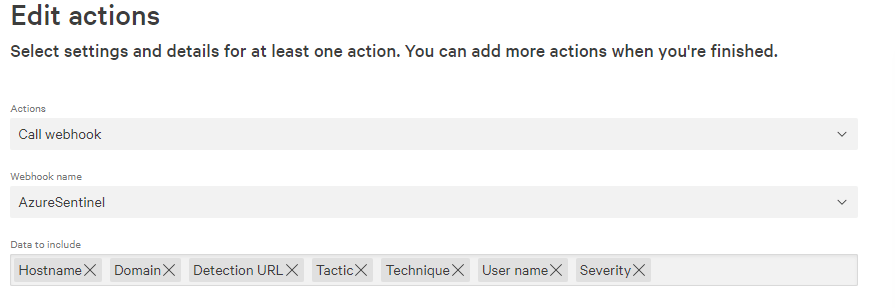
Now each time a detection is created in CrowdStrike Falcon it will send the data to our Logic App. The last part is to configure the Logic App to then push that data to Azure Sentinel which we do with three quick actions. First, we parse the JSON that is inbound from CrowdStrike, if you are using the same data as myself then the schema for this is –

{
    "properties": {
        "data": {
            "properties": {
                "detections.severity": {
                    "type": "string"
                },
                "detections.tactic": {
                    "type": "string"
                },
                "detections.technique": {
                    "type": "string"
                },
                "detections.url": {
                    "type": "string"
                },
                "detections.user_name": {
                    "type": "string"
                },
                "devices.domain": {
                    "type": [
                        "string",
                        "null"
                    ]
                },
                "devices.hostname": {
                    "type": "string"
                }
            },
            "type": "object"
        },
        "meta": {
            "properties": {
                "event_reference_url": {
                    "type": "string"
                },
                "timestamp": {
                    "type": "integer"
                },
                "trigger_name": {
                    "type": "string"
                },
                "workflow_id": {
                    "type": "string"
                }
            },
            "type": "object"
        }
    },
    "type": "object"
}

Then we are going to compose a new JSON payload where we change the column headers to something a little easier to read, then send that data to Sentinel using the ‘Send data’ action. So our entire ingestion playbook is just four steps.
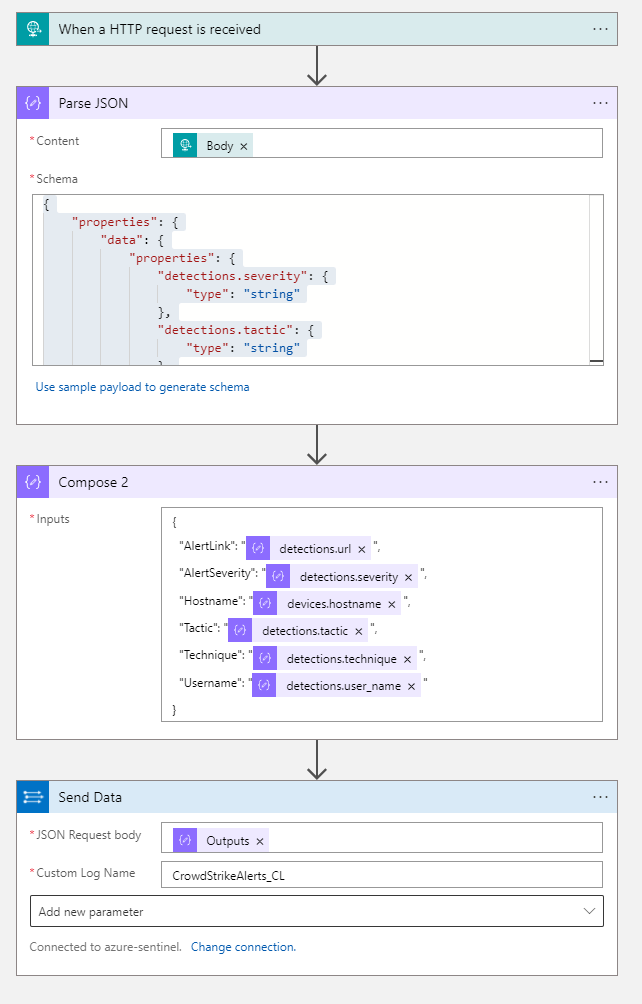
You can create test detections by following the CrowdStrike support article. You should see alerts start to flow in to your CrowdStrikeAlerts_CL.

Once you have some data in there you can start visualizing trends in your data, what types of techniques are being seen –

CrowdStrikeAlerts_CL
| summarize count()by Technique_s
| render piechart 
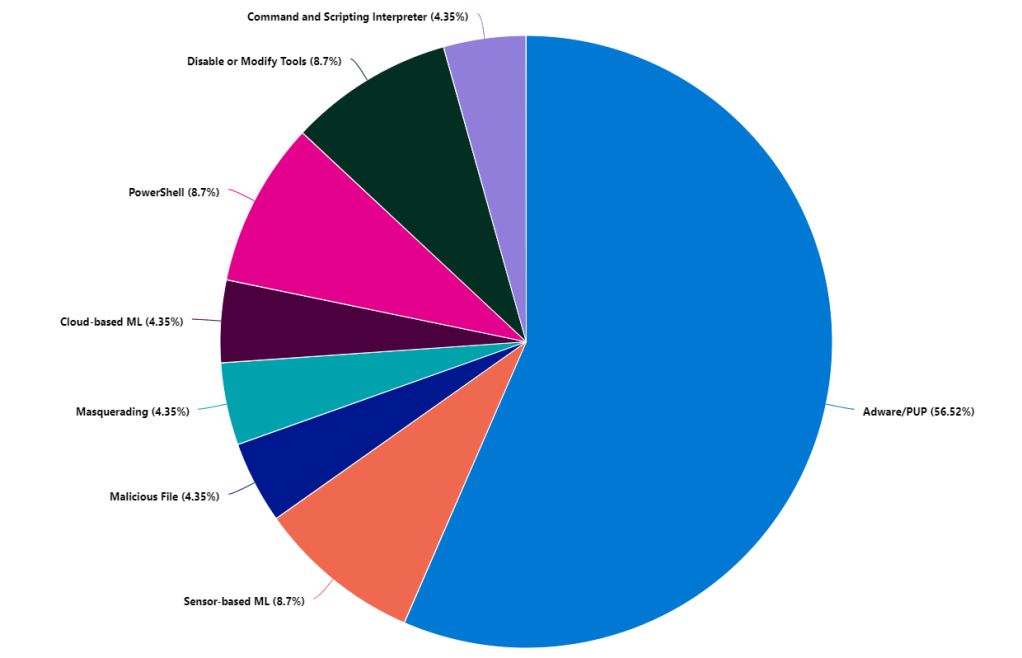
Where the real value is with getting these detections into Sentinel is leveraging all the other data already in there and then automating response. One of the most simple things is to take the username from your alert and join it to your IdentifyInfo table (powered by UEBA) and find out some more information about the user. Your Azure AD identity information is highly likely to be of greater quality than almost anywhere else. So grab your alert, join it to your identity table grabbing the most recent record for the user –

CrowdStrikeAlerts_CL
| project Hostname_s, AlertSeverity_s, Technique_s, Username_s, AlertLink_s
| join kind=inner
(
IdentityInfo
| where TimeGenerated > ago(21d)
| summarize arg_max(TimeGenerated, *) by AccountName
)
on $left.Username_s == $right.AccountName
| project Hostname_s, AlertSeverity_s, Technique_s, Username_s, AccountUPN, Country, EmployeeId, Manager, AlertLink_s

Now on our alerts we get not only the info from CrowdStrike but the information from our IdentityInfo table, so where the user is located, their UPN, manager and whatever else we want.

We can use the DeviceLogonEvents from Defender to find out if the user is a local admin on that device. You may want to prioritize those detections because there is greater chance of damage being done and lateral movement when the user is an admin –

let csalert=
CrowdStrikeAlerts_CL
| where TimeGenerated > ago (1d)
| project HostName=Hostname_s, AccountName=Username_s, Technique_s, AlertSeverity_s;
DeviceLogonEvents
| where TimeGenerated > ago (1d)
| join kind=inner csalert on HostName, AccountName
| where LogonType == "Interactive"
| where InitiatingProcessFileName == "lsass.exe"
| summarize arg_max(TimeGenerated, *) by DeviceName
| project TimeGenerated, DeviceName, IsLocalAdmin

If a user is flagged using suspicious PowerShell, we can grab the alert, then find any PowerShell events in a 30 minute window (15 mins either side of your alert). When you are joining different tables you just need to check how each table references your device names. You may need to trim or adjust the naming so they match up. You can use the tolower function to drop everything to lower case and trim(@”.yourdomain.com”,DeviceName) if you need to remove your domain name in order to match.

let csalert=
CrowdStrikeAlerts_CL
| where TimeGenerated > ago(1d)
| extend AlertTime = TimeGenerated
| where Technique_s == "PowerShell"
| project AlertTime, Hostname_s, AlertSeverity_s, Technique_s, Username_s;
DeviceProcessEvents
| where TimeGenerated > ago(1d)
| join kind=inner csalert on $left.DeviceName == $right.Hostname_s
| where InitiatingProcessFileName contains "powershell"
| where TimeGenerated between ((AlertTime-timespan(15min)).. (AlertTime+timespan(15min)))

We can look up the device which flagged a CrowdStrike detection and see if it has been flagged elsewhere in SecurityAlert table, maybe by Defender for ID or another product you have. Again, just check out the structure of your various tables as your naming may not be exactly the same but use your trim and other functions to line them up.

let csalert=
CrowdStrikeAlerts_CL
| where TimeGenerated > ago(4d)
| project Hostname_s, AlertSeverity_s, Username_s
| join kind=inner (
IdentityInfo
| where TimeGenerated > ago(21d)
| summarize arg_max(TimeGenerated, *) by AccountName)
on $left.Username_s == $right.AccountName
| project Hostname_s, AlertSeverity_s, Username_s, AccountUPN;
SecurityAlert
| where TimeGenerated > ago (7d)
| join kind=inner csalert on $left.CompromisedEntity == $right.Hostname_s

And the same for user alerts, possibly from your identity products like Azure AD Identity Protection or Cloud App Security. We can use our identity table to make sense of different types of usernames these products may use. CrowdStrike or your AV may use samaccountname, where Cloud App uses userprincipalname for instance.

let csalert=
CrowdStrikeAlerts_CL
| where TimeGenerated > ago(4d)
| project Hostname_s, AlertSeverity_s, Username_s
| join kind=inner (
IdentityInfo
| where TimeGenerated > ago(21d)
| summarize arg_max(TimeGenerated, *) by AccountName)
on $left.Username_s == $right.AccountName
| project Hostname_s, AlertSeverity_s, Username_s, AccountUPN;
SecurityAlert
| where TimeGenerated > ago (7d)
| join kind=inner csalert on $left.CompromisedEntity == $right.AccountUPN

It’s great being alerted to things and having information available to investigate, but sometimes an alert is of a high enough priority that you want to respond to it automatically. With CrowdStrike, the team have built a few playbooks we can leverage, which are located here. The three we are interested in are CrowdStrike_base which handles authentication to their API, CrowdStrike_Enrichment_GetDeviceInformation which retrieves host information about a device and finally CrowdStrike_ContainHost which will network contain a device for us. This playbook works by retrieving the hostname from the Sentinel entity mapping, searching CrowdStrike for a matching asset and containing it. Deploy the base playbook first, because the other two depend on it to access the API. You will also need an API key from your CrowdStrike tenant with enough privilege.

Once deployed you can either require someone to run the playbook manually or you can automate it entirely. For alerts that come in from CrowdStrike, or other AV products there is a good chance you already have the rules set up to determine response to detections. However we can use the same playbook to contain devices that we find when hunting through log data that CrowdStrike don’t see. For instance Defender for ID is going to be hunting for different threats than an endpoint security product. CrowdStrike may not generally care about domain recon or it may not detect pass the hash type activity, but Defender for ID definitely will. If we want to network contain based on domain recon flagged by Defender for ID we parse out the entities from the alert, then we can trigger our playbook based on that. We want to exclude our domain controllers from the entities, because they are the target of the attack and we don’t want to contain those, but we do the endpoint initiating the behaviour.

SecurityAlert
| where ProviderName contains "Azure Advanced Threat Protection"
| where AlertName contains "reconnaissance"
| extend EntitiesDynamicArray = parse_json(Entities) | mv-expand EntitiesDynamicArray
| extend EntityType = tostring(parse_json(EntitiesDynamicArray).Type), EntityAddress = tostring(EntitiesDynamicArray.Address), EntityHostName = tostring(EntitiesDynamicArray.HostName)
| extend HostName = iif(EntityType == 'host', EntityHostName, '')
| where HostName !contains "ADDC" and isnotempty(HostName)
| distinct HostName, AlertName, VendorOriginalId, ProviderName

You can also grab identity alerts, such as ‘Mass Download’, lookup your DeviceLogonEvents table to find the machine most recently used by the person who triggered it, then isolate the host based off that. Our SecurityAlert table uses userprincipalname and our DeviceLogonEvents uses the old style username, so we again use our IdentityInfo table to piece them together.

let alert=
SecurityAlert
| where AlertName has "Mass Download"
| project CompromisedEntity
| join kind=inner 
(
IdentityInfo
| where TimeGenerated > ago (21d)
| summarize arg_max (TimeGenerated, *) by AccountUPN
)
on $left.CompromisedEntity == $right.AccountUPN
| project CompromisedEntity, AccountUPN, AccountName;
DeviceLogonEvents
| where TimeGenerated > ago (1d)
| join kind=inner alert on AccountName
| where LogonType == "Interactive"
| where InitiatingProcessFileName == "lsass.exe"
| summarize arg_max(TimeGenerated, *) by DeviceName
| project DeviceName, CompromisedEntity, AccountName

Most identity driven alerts from Cloud App Security or Azure AD Identity Protection won’t actually have the device name listed, we leverage our other data to go find it. Now we have the device name which our user last logged onto for our ‘Mass Download’ events, we can isolate the machine, or at the very least investigate further. Of course the device we found may not necessarily be the one that has flagged the alert – but you may want to play it safe and contain it anyway while also responding to the identity side of the alert.

Streaming Azure AD risk events to Azure Sentinel — 5th Aug 2021

Streaming Azure AD risk events to Azure Sentinel

Microsoft recently added the ability to stream risk events from Azure AD Identity Protection into Azure Sentinel, check out the guidance here. You can add the data in the Azure AD -> Diagnostic Settings page, and once enabled you will see data stream into two new tables

  • AADUserRiskEvents – this is the data that you would see in Azure AD Identity Protection if you went and viewed the risk detections, or risky sign-in reports
  • AADRiskyUsers – this is the data from the Risky Users blade in Azure AD Identity Protection but streamed as log data, so will include when users are remediated.

This is a really welcome addition because there has always been an overlap with where detections are found, Azure AD Identity Protection will find some stuff, Microsoft Cloud App Security will find its own things, there is some crossover, and you may not be licensed for everything. Also having the data in Sentinel means you can query it against other log sources more unique to your environment. If you want to visualize the type of risk events in your environment you can do so. Keep in mind this data will only start populating once you enable it, any risk events prior to that won’t be resent to Azure Sentinel.

AADUserRiskEvents
| where isnotempty( RiskEventType)
| summarize count()by RiskEventType
| render piechart 

You can see here some of the overlap, you get unlikelyTravel and mcasImpossibleTravel, you can also have a look at where the data is coming from.

AADUserRiskEvents
| where isnotempty( RiskEventType)
| summarize count()by RiskEventType, Source

If you look at an AADUserRiskEvents event in detail, you see a column for DetectionTimingType – which tells us whether the detection is realtime (on sign in) or offline.

AADUserRiskEvents
| where isnotempty( DetectionTimingType) 
| summarize count()by DetectionTimingType, RiskEventType, Source

So we get some realtime alerts and some offline alerts from a number of sources. At the end of the day, more data is always useful, even if users will trigger multiple alerts if you are licensed for both systems. For anyone that has spent time looking at Azure AD sign in data, you would also know that there are risk items in those logs too, so how to we match up the data from a sign in to the data in our new AADUserRiskEvents? Thankfully when a sign in occurs that flags a risk event, it registers the same correlation id on both tables. So we can join between them and extract some really great data from both tables. Sign in data has all the information about what the user was accessing, conditional access rules, what client etc and then we can also get the data from our risk events.

let signin=
SigninLogs
| where TimeGenerated > ago(24h)
| where RiskEventTypes_V2 != "[]";
AADUserRiskEvents
| where TimeGenerated > ago(24h)
| join kind=inner signin on CorrelationId

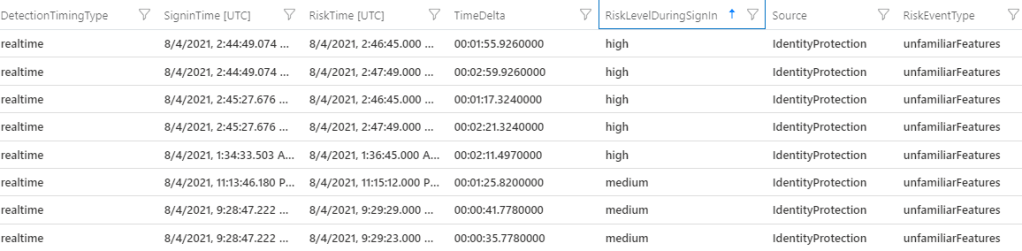
When a user sign-ins with no risk unfortunately the RiskEventTypes_V2 table is actually not actually empty, it is just [], so we exclude those, then join on the correlation id to our risk events and you will get the data from both. We can even extend the columns and calculate the time delta between the sign in event and the risk event, for real time that is obviously going to be quick, but for offline you can find out how long it took for the risk to be flagged.

let signin=
SigninLogs
| where TimeGenerated > ago(24h)
| extend SigninTime = TimeGenerated
| where RiskEventTypes_V2 != "[]";
AADUserRiskEvents
| where TimeGenerated > ago(24h)
| extend RiskTime = TimeGenerated
| join kind=inner signin on CorrelationId
| extend TimeDelta = abs(SigninTime - RiskTime)
| project UserPrincipalName, AppDisplayName, DetectionTimingType, SigninTime, RiskTime, TimeDelta, RiskLevelDuringSignIn, Source, RiskEventType

When looking at these risk events, you may notice a column called RiskDetail, and occasionally you will see aiConfirmedSigninSafe. This is basically Microsoft flagging the risk event as safe based on some kind of signals they are seeing. They won’t tell you what is in the secret sauce to confirm it is safe but we can guess it is a combination of properties they have seen before for that user – maybe an IP address, location or user agent known seen previously. So we can probably exclude those from things we are worried about. Maybe you also only care about realtime detections considered medium or high, so we filter out offline detections and low risk events.

let signin=
SigninLogs
| where TimeGenerated > ago(24h)
| where RiskLevelDuringSignIn in ('high','medium')
| extend SigninTime = TimeGenerated
| where RiskEventTypes_V2 != "[]";
AADUserRiskEvents
| where TimeGenerated > ago(24h)
| extend RiskTime = TimeGenerated
| where DetectionTimingType == "realtime"
| where RiskDetail !has "aiConfirmedSigninSafe"
| join kind=inner signin on CorrelationId
| extend TimeDelta = abs(SigninTime - RiskTime)
| project UserPrincipalName, AppDisplayName, DetectionTimingType, SigninTime, RiskTime, TimeDelta, RiskLevelDuringSignIn, Source, RiskEventType, RiskDetail

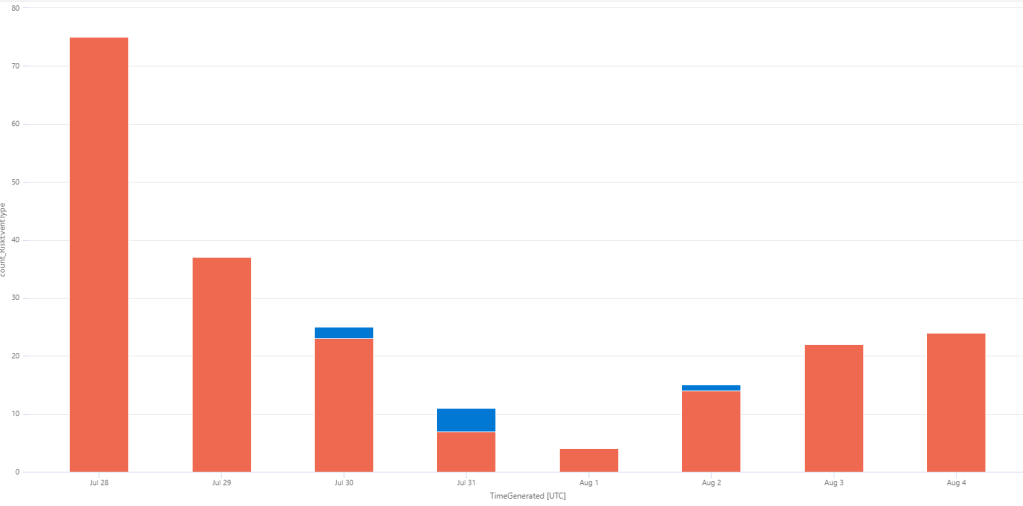
You can visualize these events per day if you wanted to have an idea if you are seeing increases at all. Keep in mind this table is relatively new so you won’t have a lot of historical data to work with, and again the data won’t appear at all until you enable the diagnostic setting. But over time it will help you create a baseline of what is normal in your environment.

let signin=
SigninLogs
| where RiskLevelDuringSignIn in ('high','medium')
| extend SigninTime = TimeGenerated
| where RiskEventTypes_V2 != "[]";
AADUserRiskEvents
| extend RiskTime = TimeGenerated
| where DetectionTimingType == "realtime"
| where RiskDetail !has "aiConfirmedSigninSafe"
| join kind=inner signin on CorrelationId
| extend TimeDelta = abs(SigninTime - RiskTime)
| summarize count(RiskEventType) by bin(TimeGenerated, 1d), RiskEventType
| render columnchart  

If you have Azure Sentinel UEBA enabled, you can even enrich your queries with that data, which includes things like City, Country, Assigned Azure AD roles, group membership etc.

let id=
IdentityInfo
| summarize arg_max(TimeGenerated, *) by AccountUPN;
let signin=
SigninLogs
| where TimeGenerated > ago (14d)
| where RiskLevelDuringSignIn in ('high','medium')
| join kind=inner id on $left.UserPrincipalName == $right.AccountUPN
| extend SigninTime = TimeGenerated
| where RiskEventTypes_V2 != "[]";
AADUserRiskEvents
| where TimeGenerated > ago (14d)
| extend RiskTime = TimeGenerated
| where DetectionTimingType == "realtime"
| where RiskDetail !has "aiConfirmedSigninSafe"
| join kind=inner signin on CorrelationId
| extend TimeDelta = abs(SigninTime - RiskTime)
| project SigninTime, UserPrincipalName, RiskTime, TimeDelta, RiskEventTypes, RiskLevelDuringSignIn, City, Country, EmployeeId, AssignedRoles

If you were then to filter on only alerts where the users have an assigned Azure AD role.

let id=
IdentityInfo
| summarize arg_max(TimeGenerated, *) by AccountUPN;
let signin=
SigninLogs
| where TimeGenerated > ago (14d)
| where RiskLevelDuringSignIn in ('high','medium')
| join kind=inner id on $left.UserPrincipalName == $right.AccountUPN
| extend SigninTime = TimeGenerated
| where RiskEventTypes_V2 != "[]";
AADUserRiskEvents
| where TimeGenerated > ago (14d)
| extend RiskTime = TimeGenerated
| where DetectionTimingType == "realtime"
| where RiskDetail !has "aiConfirmedSigninSafe"
| join kind=inner signin on CorrelationId
| where AssignedRoles != "[]"
| extend TimeDelta = abs(SigninTime - RiskTime)
| project SigninTime, UserPrincipalName, RiskTime, TimeDelta, RiskEventTypes, RiskLevelDuringSignIn, City, Country, EmployeeId, AssignedRoles

This kind of combination of attributes – realtime risk which is either medium or high, which Microsoft has not confirmed as safe and the user has an Azure AD role assigned may warrant a faster response from you or your team.

Cloud App Security? Azure AD Identity Protection? Help! — 16th Jul 2021

Cloud App Security? Azure AD Identity Protection? Help!

If you are an Azure AD P2 tenant, or have E5 licensing there is a chance you have had a look at these products, the way they integrate (or don’t integrate) with each other and Azure Sentinel is sometimes a little unclear and known to change. They are meant to take the noise from your data sources like Azure AD sign in logs, or Office activity logs and make some sense of it all and direct the alerts to you, which is great. However sometimes even the alerts left over can be noisy. In Cloud App Security you can definitely tune this alerts which is helpful – for instance, you can change ‘impossible travel’ alerts to only fire on successful logons, not successful and failed. but I personally like getting as much data as I can into Sentinel and work with it in there.

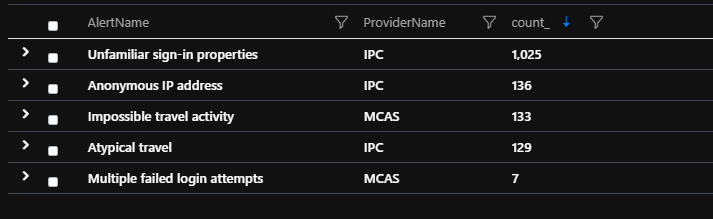
The downside is that sending everything to Sentinel may mean a lot of alerts, even after Cloud App Security and Identity Protection have done their thing. Depending on the size your environment, it still may be overwhelming, say in a month you get 1430 alerts (using the below test data) for various identity issues.

You could just take the stance that for any of these you just sign the person out or force a password reset, that could result in a heap of false positives and frustrating users, and not treating more serious cases with more urgency.

When you connect Azure AD Identity Protection & Cloud App Security to Azure Sentinel, the alerts will show up in the SecurityAlert table with the ProviderNames of IPC and MCAS respectively. MCAS also alerts on a lot of other things, but we will focus on identity issues for now. When we look at the description for these alerts from Identity Protection, they are all kind of the same, something similar to “This risk event type considers past sign-in properties (e.g. device, location, network) to determine sign-ins with unfamiliar properties. The system stores properties of previous locations used by a user, and considers these “familiar”. The risk event is triggered when the sign-in occurs with properties not already in the list of familiar properties. The system has an initial learning period of 30 days, during which it does not flag any new detections…”, MCAS will give you a little more info but we need to really hunt ourselves.

To help us make sense of all these alerts, I thought we could get the details (IPv4 addresses and UserPrincipalName for this example) from our SecurityAlert, then replay that data through the Azure AD SigninLogs table and see if we can find some key alerts

let IPs=
SecurityAlert
| project TimeGenerated, Status, AlertName,CompromisedEntity,ExtendedProperties, ProviderName
| where TimeGenerated > ago (1h)
| where ProviderName in ('MCAS', 'IPC')
| where AlertName in ('Impossible travel activity','Multiple failed login attempts','Unfamiliar sign-in properties','Anonymous IP address','Atypical travel')
| where Status contains "New"
| extend Properties = tostring(parse_json(ExtendedProperties))
| extend UserPrincipalName = CompromisedEntity
| extend ipv4Addresses = extract_all(@"(([\d]{1,3}\.){3}[\d]{1,3})", dynamic([1]), Properties)
| extend ipv4Add = translate('["]','',tostring(ipv4Addresses))
| extend ipv4Split =split(ipv4Add , ",")
| mv-expand ipv4Split
| extend ipv4Split_s = tostring(ipv4Split);
SigninLogs
| project TimeGenerated, UserPrincipalName, IPAddress, AppDisplayName, ResultType, UserAgent, Location
| where TimeGenerated > ago(3d)
| where IPAddress !startswith "1.1.1."
| where ResultType == 0 or ResultType == 50158
| join kind=inner IPs on UserPrincipalName ,$left.IPAddress==$right.ipv4Split_s
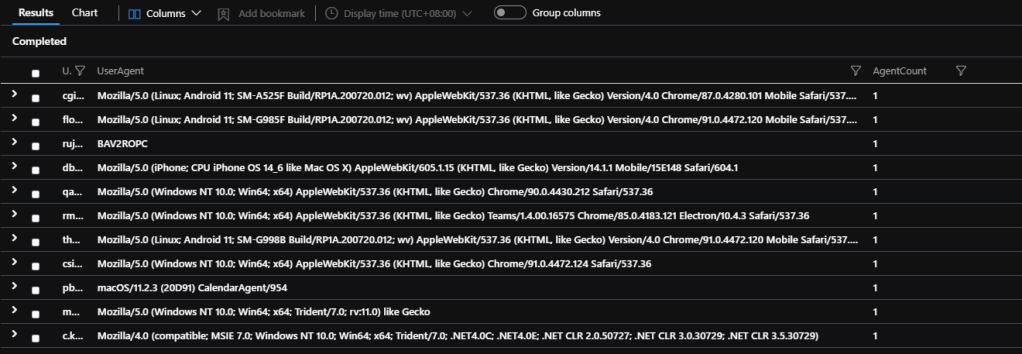
| summarize AgentCount = count()by UserPrincipalName, UserAgent
| where AgentCount == 1

We get our SecurityAlerts over whatever period you want to look through, parse the IPs and UserPrincipalName data out, then we use the mv-expand operator to make a new row for each IP/UPN combination then look up that data to our SigninLogs table. Then to add some more intelligence, we exclude known trusted IP addresses (1.1.1.0/24 in the above example, you can whitelist these in MCAS too of course) and also only filter on successful (ResultType == 0) or successful and then sent to a third party security challenge, such as third party MFA (ResultType == 50158) events. We join on UserPrincipalName where we have a match on one of the IPs taken from the SecurityAlert event. Lastly we count the UserAgents used by each user and tell us when it is new, count == 1.

So get the alerts, grab the IP addresses and user, use that data to look for successful sign ins from non trusted networks on a user agent that is new to that user over the last 3 days. In my test environment full of fake data we go from 1430 alerts, to 11

I am not suggesting you just ignore the other 1119 alerts of course, but maybe these ones you prioritize higher or have a different response to.